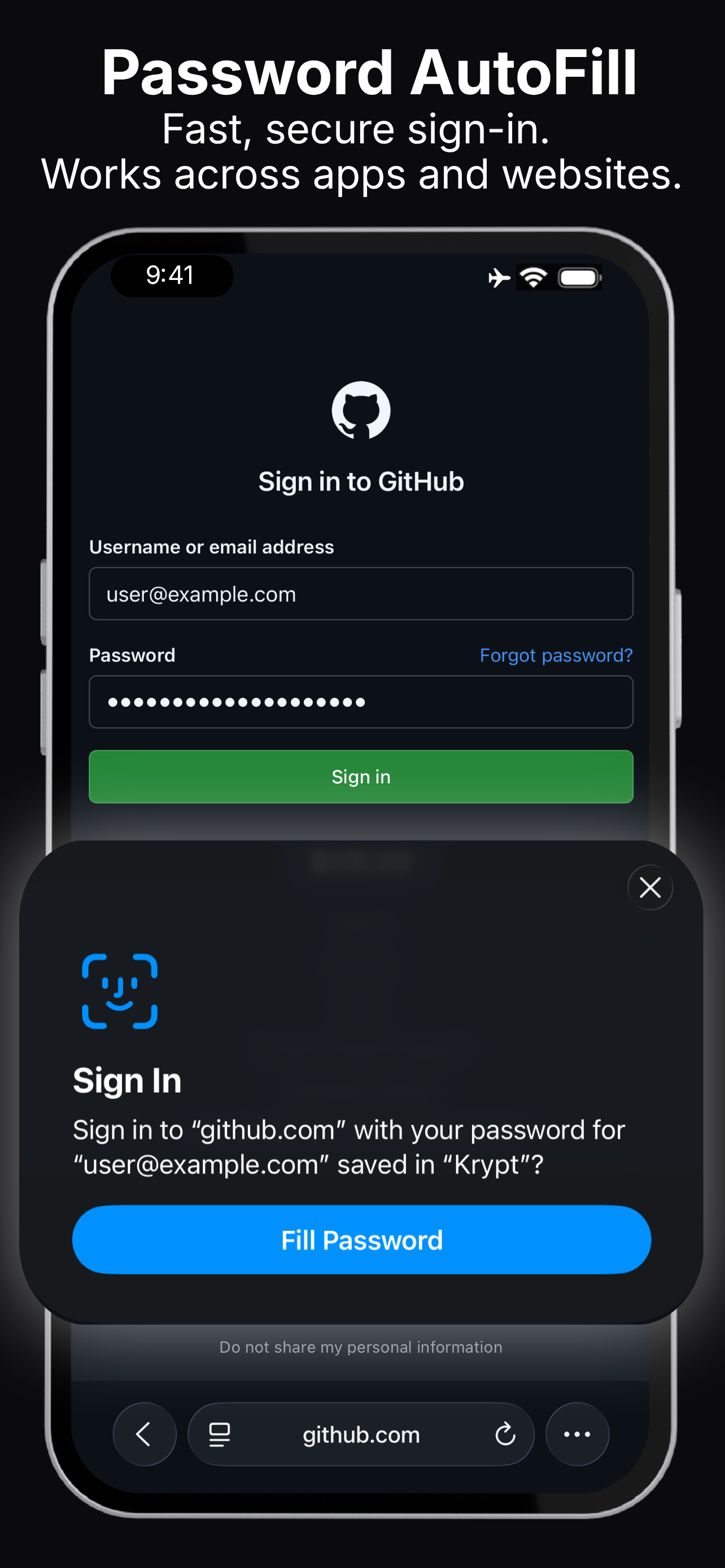
Password AutoFill · iPhone · Safari and apps
Password AutoFill.
Secure sign-in.
Still offline.
Krypt can fill usernames and passwords in Safari and supported iPhone apps. AutoFill is optional, controlled by you, and does not add cloud sync or a Krypt account.
Set up AutoFill →
Your choice
Convenience is optional.
Privacy isn't.
Krypt works normally without Password AutoFill. You can keep the vault completely separate and copy credentials manually whenever you prefer.
When AutoFill is enabled, iOS can request matching credentials from Krypt after you choose to use them. You can turn the feature off again at any time without deleting or changing your vault.
Setup
Enable AutoFill
in a few taps.
1. Open Krypt SettingsUnlock your real vault, open Settings, and switch on Password AutoFill.
2. Open iPhone settingsFollow the prompt, or open Settings on your iPhone and go to General → AutoFill & Passwords.
3. Select KryptTurn on Krypt as a Password AutoFill provider. You may keep another provider enabled as well.
4. Return to KryptYour eligible credentials are prepared for AutoFill after the vault is unlocked and synchronized locally.
Menu names can vary slightly by iOS version. Look for AutoFill & Passwords in iPhone Settings if the direct prompt is not available.
Signing in
Use Krypt in Safari
and supported apps.
SafariOpen a website, tap its username or password field, then choose the suggested Krypt credential above the keyboard.
iPhone appsOn a supported login screen, tap the username or password field and select the Krypt suggestion provided by iOS.
If the correct credential is not shown immediately, tap the passwords or key icon above the keyboard to open the full AutoFill picker, then choose Krypt and select the login you need.
Krypt may ask you to authenticate before revealing credentials. Complete Face ID, Touch ID, or PIN authentication when prompted.
Matching logins
Help iOS find
the right credential.
Add the websiteSave the correct website domain with the credential, such as example.com. This is what iOS uses to match a login.
Include all fieldsAutoFill credentials need a valid website, a non-empty username, and a non-empty password.
Multiple accountsIf several logins share the same website, iOS can show each one so you can choose the correct account.
Changes sync locallyCreating, editing, deleting, or importing eligible credentials updates Krypt's local AutoFill data.
Privacy model
AutoFill changes the workflow.
Not where your vault lives.
100% offline. No cloud. No sync. No account required.
Enabling AutoFill does not upload your vault or create an online Krypt account. Krypt prepares encrypted credential data on your iPhone so its AutoFill extension can respond when you explicitly request a login.
Your main vault remains encrypted and stored locally on the device. AutoFill can be disabled whenever you no longer want the integration.
Troubleshooting
When a suggestion
does not appear.
Krypt is missingConfirm Password AutoFill is enabled inside Krypt and that Krypt is selected under iPhone Settings → General → AutoFill & Passwords.
No matching loginOpen the credential in Krypt and confirm that the website domain, username, and password are all present.
The app shows a black screenClose and reopen the destination app, then try the login again. Some apps reload their authentication screen when switching from an SMS or another app.
Still not workingDisable and re-enable Krypt as an AutoFill provider, unlock the real vault, and try again.
AutoFill support depends on the login screen. Older websites and apps may not identify their fields correctly, even when Krypt is configured properly.
Fill passwords.
Keep them local.
Krypt is an offline private vault for iPhone with optional Password AutoFill.
Download on the App Store →